
Google Meet Options
Google Meet Guide: Integration vs. Manual Setup
pickAtime offers two ways to manage Google Meet sessions. Choose the method that best fits your school's workflow:
- Google Meet Integration: Links are generated automatically and are unique for every single appointment.
- Manual Setup: A single, permanent link is assigned to each teacher for all their appointments.
Method 1: Google Meet Integration (Automatic)
Best for: High security and unique links for every meeting.
1. Prerequisites
Ensure Google Calendar Integration is already set up at the Account level. This is required to activate the Google Meet engine.
2. Enable for Your Event
- Go to Events Management / Settings/UI Setup.
- Open Advanced Settings / Online Meeting Provider.
- Select Google.
3. How it Works
Once enabled, any appointment booked as a Virtual type will automatically generate a unique Google Meet link. This link is included in the confirmation email sent to parents.
Note: When using the integration, the "Virtual Room" column will not appear in the Appointments tab, as links are handled automatically by the system.
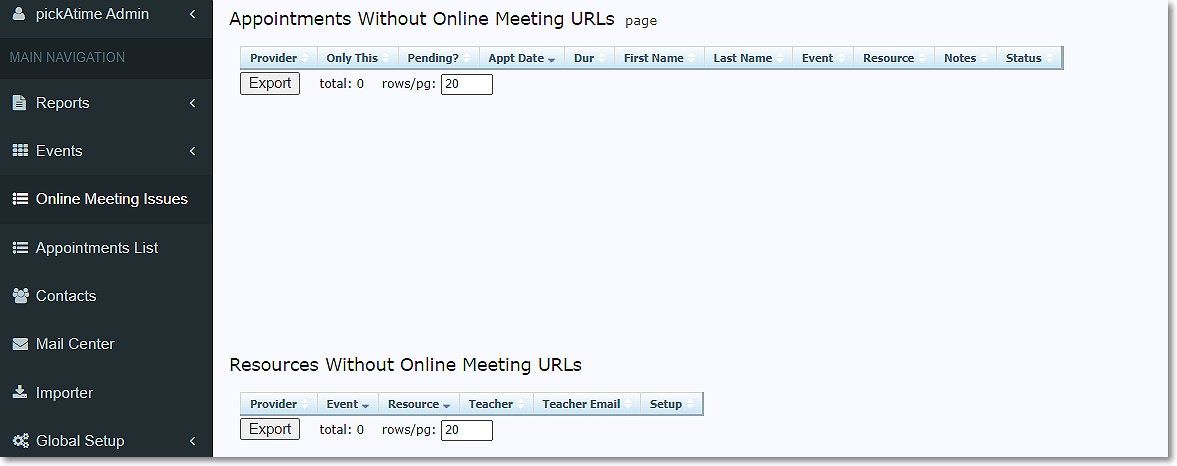
Online Meeting Issues Page Guide
This page helps Admins monitor the status of Google Meet link generation and teacher calendar syncs. It’s essential when using the Online Meeting Provider: Google to ensure every virtual appointment is properly linked.
Sections on the Online Meeting Issues Page
1. Appointments Without Online Meeting URLs
- Shows appointments missing Google Meet links.
- Note: Link generation may take up to 40 minutes.
- Many missing links will auto-resolve once the link is created and detected.
2. Pending
- Appointments marked Pending were booked less than 40 minutes ago.
- The Pending icon will disappear once the link is created.
3. Only This
- Indicates whether the appointment is the only one without a link.
- Helps identify if it's an isolated case or part of a broader sync issue.
4. Resources Without Online Meeting URLs
- List teachers/resources that do not have meeting URLs.
- If a checkmark is present, that teacher is fully synced and configured.
Sync & Setup Status Indicators
Export Setup
- Checked when:
- The teacher has synced the Google Calendar account on the Calendar Sync page in the Admin UI.
- Selected a default calendar.
- Clicked Save and Sync.
- Missing check = Teacher has not completed calendar sync.
Import Setup
- Checked if the teacher opted to block off times in pickAtime from Google Calendar.
- Not recommended for teachers.
Important Admin Tips
- Teachers must have a Resource assigned to their contact records and time slots with the appointment type virtual created to appear on this page.
- After enabling the Online Meeting Provider: Google, always check the Online Meeting Links page (left-handed dashboard).
- Use it to identify any missing URLs and verify teacher sync status.
- If links don’t generate after 40 minutes, confirm:
- The teacher has completed sync (Export Setup is checked).
- The appointment was created as Virtual or Virtual/In-Person.
Still No Link?
It might be due to:
- The time zone was recently changed
- There’s an error in the system
Contact: support@pickatime.com
Method 2: Manual Setup (Permanent Links)
Best for: Teachers who prefer to use one "personal" room link for all their sessions.
Step 1: Initial Event Configuration
You must first enable virtual appointment types. This is required for both entry methods below.
- Enable Appointment Types: Go to Settings > Vendor UI Setup. In the Slot Generator section, check Show the "Appointment type".
- Configure Time Slots: Go to the Appointments tab. Create or update slots and set the type to Virtual or In-person or Virtual.
Step 2: Adding the Links
Choose one of the following ways to add the teacher's URLs:
- Option A: Manual Entry (Directly in Event) Navigate to the teacher list in the Appointments tab. Double-click the cell in the Virtual Room column to paste the link.
- Option B: Bulk Import (Via Data Files)
- Update Teachers: Add URLs to the Virtual Room column in your Teachers file and import it (this updates the contact record).
- Sync to Event: Import your Class file. This is essential to push the links from the teacher records into the specific event.
Final Step: Ensure Links are Sent to Parents
To ensure participants receive their meeting links, you must verify your email macros.
- Go to Events Management / Settings / Notification Setup.
- In the Confirmation and Reminder emails, ensure Replace the Email Body with the Printable Schedule of Appointments is checked.
- Navigate to Settings / CUI Messages / Printable Schedule.
- Ensure the $(Room) macro is present.
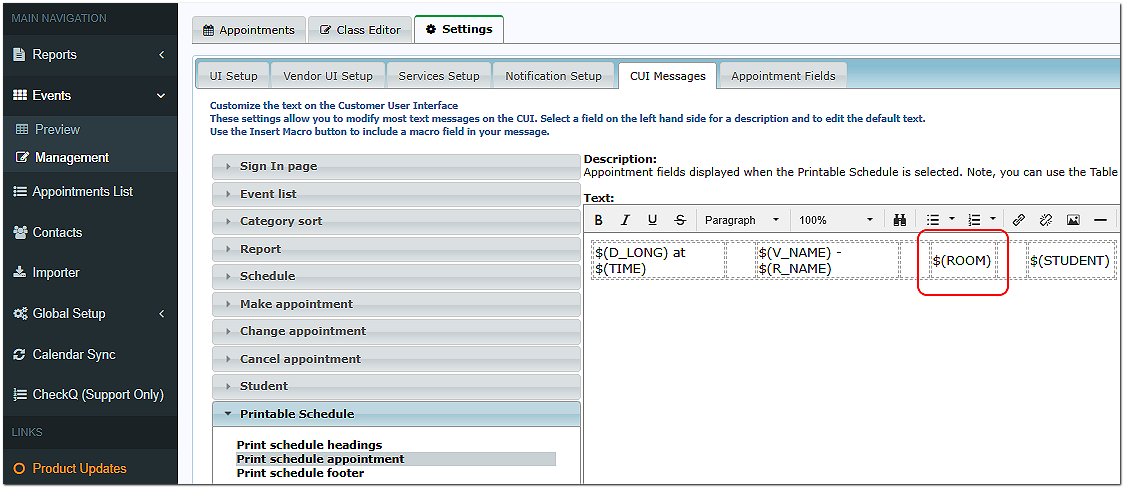
- This is a "Smart Macro" - it automatically pulls the correct data (Room or Virtual) based on the booked appointment type, regardless of whether you are using the Integration, the Manual Virtual Room, or a physical room number.