
Turn it On and Test the Scheduler
- From the Admin UI on the Events Preview page select your event. Click on the
 button to open the Event Management page.
 - Select the Settings tab and then the UI Setup tab.
- To turn on the online scheduler so parents can use the website and schedule appointments, modify the “Open scheduler to customers on ” and the “Close scheduler to customers on” Any days that you want to make available for parents to schedule appointments should be within the start and end date specified.
To allow yourself (and other Administrators) access to the scheduler when it is closed to your parents, check the box "allow Admins access to the CUI at all times".

Create the SSO - new schools
PickAtime can be used to create a direct link (via Single Sign On) from the Blackboard Resource Board to the Parent Teacher Conference event for your parents. For quick access on how to build a Resource Board, visit Blackbaud’s Helpfile on Resource Board. This page is for new schools who do not currently have a pickAtime / Blackbaud integration and need to create their SSO link. If you are a current pickAtime school who has been using the pickAtime / Blackbaud integration and needs to change to the SKY API please click here.
You can also watch our video on Setting Up Your School's Single Sign On.
Part 1: Establish the Single Sign On (SSO) between Blackbaud and pickAtime
This step requires you to copy a Redirect URL from pickatime to your Blackbaud account. You will then copy your Secret Key from Blackbaud to your pickatime account. You will need to log into both accounts to copy and paste between them.
1. First log into your pickAtime account and go to Global Setup / Business, select show Advanced options, then under the Single Sign On Options, select Blackbaud as your SSO Provider. You will see a Redirect URL listed. Copy this redirect URL as you will need to paste this to your Blackbaud settings, in the following steps.
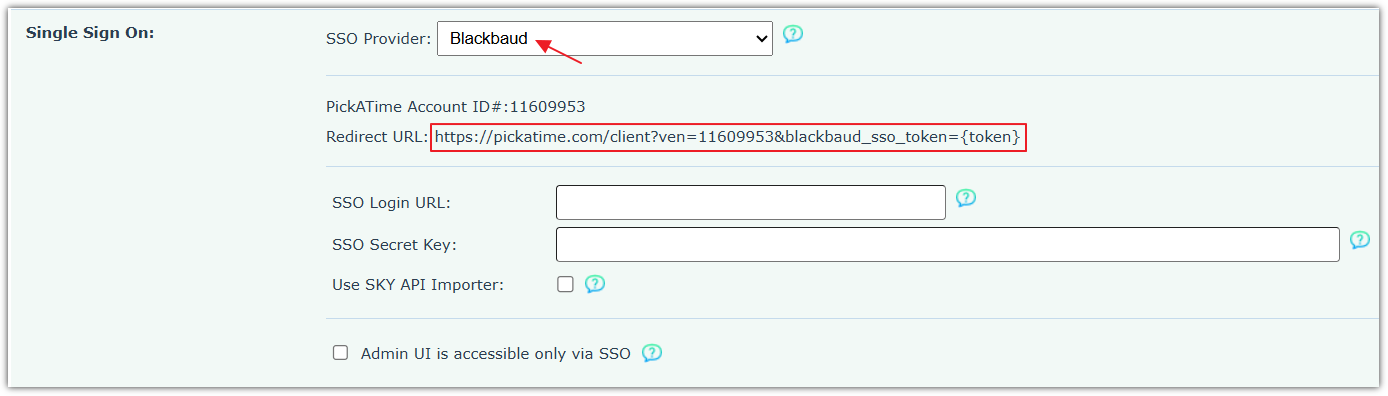
2. On your Blackbaud account, as a platform manager, navigate to Core, Security, Authentication settings, SSO Settings
3. Select Add new.
4. Enter a Name for your new SSO. When you save the Slug is generated based on the name you enter.
5. Enter your Redirect URL (what you had previously copied from your pickatime account in step 1). This is the external URL where the user will be sent with a token from a valid session from Blackbaud Education Management. Be sure to include the {token} placeholder (include the curly braces).
6. To allow impersonation select Allow impersonate.
7. Save your settings.
8. Select to Edit the item you just created.
9. Select and copy the Secret Key from the dialog box.
Tip: Your Secret Key is 88 characters - it is longer than the field, so be sure to select the entire key. Triple-click on the text field to select the whole string.

10. Return to your pickatime account, and again go to Global Setup / Business page, select Show Advanced Options, and under the Single Sign On Options, paste the Blackbaud Secret Key to the SSO Secret Key box.
You have successfully made the connection between Blackbaud and pickAtime. You will now want to ensure that your school has a Blackbaud Resource Board tile that points to pickatime.
Part 2: Add the SSO link to a resource board
1. From SSO Settings, copy the URL next to the SSO item you created. You'll need this in an upcoming step.
2. As a platform manager or content editor, navigate to Core, Content, Additional content types, Links.
3. Select Add new category.
3. Name your category
4. Save & add link.
5. Enter the Title.
6. In the URL field, combine your school's app URL (i.e. https://SCHOOLNAME.myschoolapp.com) with the URL segment from the first step, (i.e. /app/sso/auth/test-sso) replacing the last part, which is the slug. https://SCHOOLNAME.myschoolapp.com/app/sso/auth/SLUG
7. Save
8. Go to Core, Content, Resource boards.
9. Next to View boards, choose the appropriate role (security group) such as parent.
10. Select Add post,
11. Enter the Title, Description, and add a Cover photo.
12. For Post cover goes to select Direct link.
13. Select Category and find the category you created in the previous steps.
14. Select Link and choose your SSO link
15. Save.
Create the SSO - current schools
PickAtime can be used to create a direct link (via Single Sign On) from the Blackboard Resource Board to the Parent Teacher Conference event for your parents. For quick access on how to build a Resource Board, visit Blackbaud’s Helpfile on Resource Board. This page is for schools who already have a pickAtime / Blackbaud integration and simply needs to update their SSO link.
If you are a new school who does not currently have a pickAtime / Blackbaud integration and need to create their SSO link please click here.
Watch our video on Setting Up Your School's Single Sign On.
To configure the Single Sign On (SSO) for your school account please do the following:
Part 1: Establish the Single Sign On (SSO) between Blackbaud and pickAtime
This step requires you to copy a Redirect URL from pickatime to your Blackbaud account. You will then copy your Secret Key from Blackbaud to your pickatime account. You will need to log into both accounts to copy and paste between them.
1. First log into your pickAtime account and go to Global Setup / Business, select show Advanced options, then under the Single Sign On Options, select Blackbaud as your SSO Provider. You will see a Redirect URL listed. Copy this redirect URL as you will need to paste this to your Blackbaud settings, in the following steps.
2. On your Blackbaud account, as a platform manager, navigate to Core, Security, Authentication settings, SSO Settings
3. Select Add new.
4. Enter a Name for your new SSO. When you save the Slug is generated based on the name you enter.
5. Enter your Redirect URL (what you had previously copied from your pickatime account in step 1). This is the external URL where the user will be sent with a token from a valid session from Blackbaud Education Management. Be sure to include the {token} placeholder (include the curly braces).
6. To allow impersonation select Allow impersonate.
7. Save your settings.
8. Select to Edit the item you just created.
9. Select and copy the Secret Key from the dialog box.
Tip: Your Secret Key is 88 characters - it is longer than the field, so be sure to select the entire key. Triple-click on the text field to select the whole string.
10. Return to your pickatime account, and again go to Global Setup / Business page, select show Advanced Options, and under the Single Sign On Options, paste the Blackbaud Secret Key to the SSO Secret Key box.
You have successfully made the connection between Blackbaud and pickAtime. You will now want to ensure that your school has a Blackbaud Resource Board tile that points to pickatime.
Part 2: Update your Resource Board
1. From SSO Settings, copy the URL next to the SSO item you created. You'll need this in an upcoming step.
2. As a platform manager or content editor, navigate to Core, Content, Additional content types, Links.
3. Locate your current pickatime link and click on it.
4. Click on the edit icon, locate the link destination and then click Change.
5. Select the Link / URL option
6. In the URL field, combine your school's app URL (i.e. https://SCHOOLNAME.myschoolapp.com) with the URL segment from the first step, (i.e. /app/sso/auth/test-sso) replacing the last part, which is the slug. https://SCHOOLNAME.myschoolapp.com/app/sso/auth/SLUG
7. Save
Test the SSO URL
1. To allow impersonation navigate to Security, Authentication settings, SSO settings.
2. Edit the SSO link settings to allow impersonation.
3. Under your profile menu select the Impersonate User option. Blackbaud will allow you to find a user to impersonate. Ensure that this user is in pickAtime as well (note that the User Ids in Blackbaud tells pickAtime what role that User has).
4. Once you are impersonating a user go to their Resource Board.
5. Click the pickAtime link to access the event.
Notes:
1. The relevant boards must be selected to see the SSO link post in the Resources tab.
2. Note that when manually adding new users to pickAtime, pickAtime requires First / Last Name, Email, and the user's teacher or parent ID.
3. For additional information on SSO within the Blackbaud system please review the SSO Tutorial from Blackbaud.