
Event Display Options
How to Access
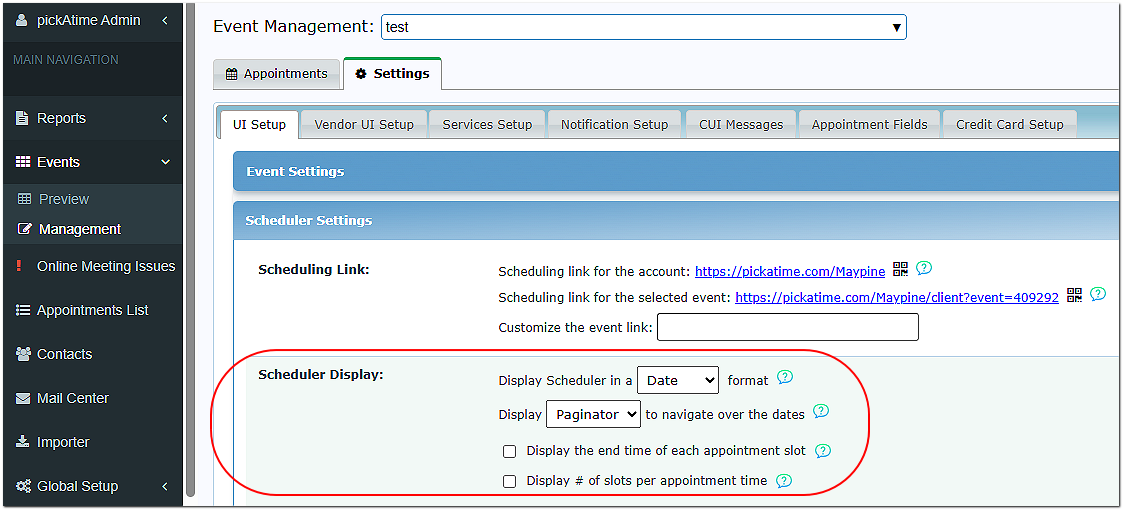
In the Admin UI tool, open the event, go to the Settings / UI Setup / Scheduler Settings, Scheduler Display section.
Formatting Options
You have five formatting options to choose from:
- Table * This is the only option for PTA events.
- Text
- List
- Vertical
- Date
Table - will display information in a table for events that are generally set up for school conferences
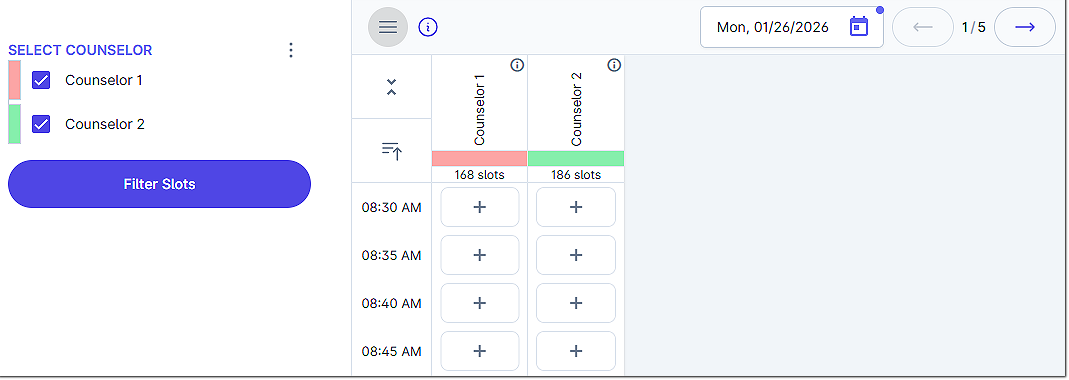
Text - will display the appointment slots by date.
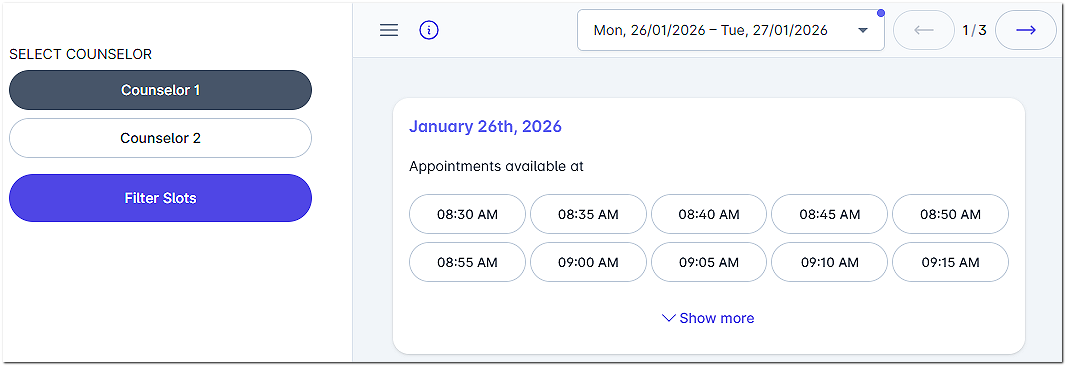
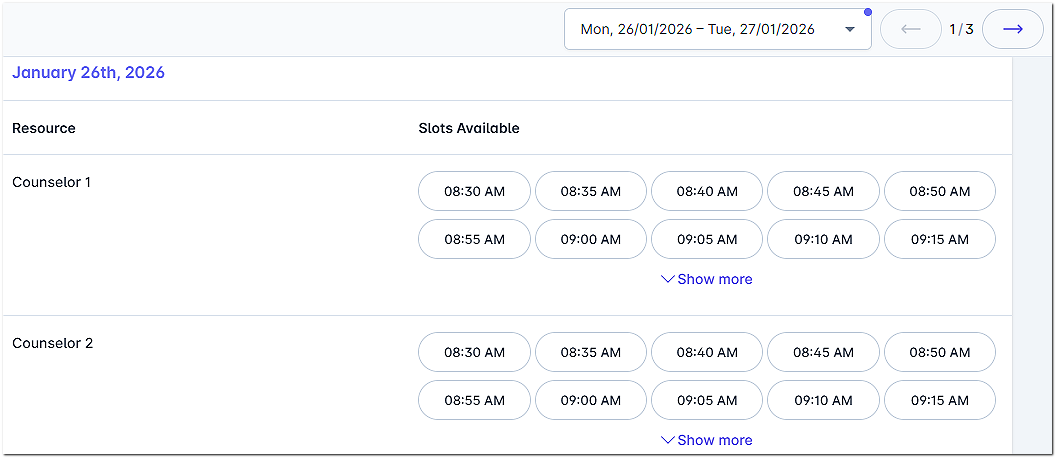
List - shows the resources on the left side, and the appointment slots are shown in a list by appointment time for each day.
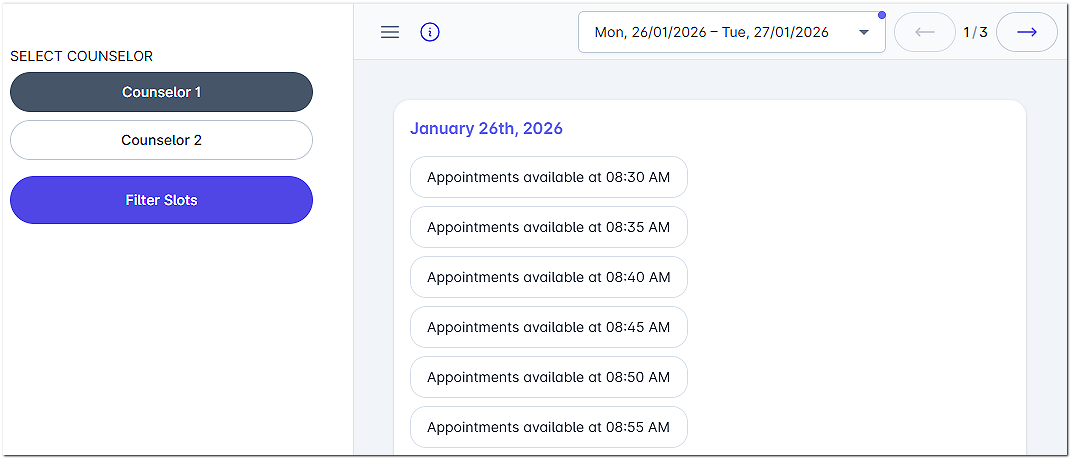
Vertical - shows the resources on the left side, and the slots are shown in list(s) by appointment for each day.
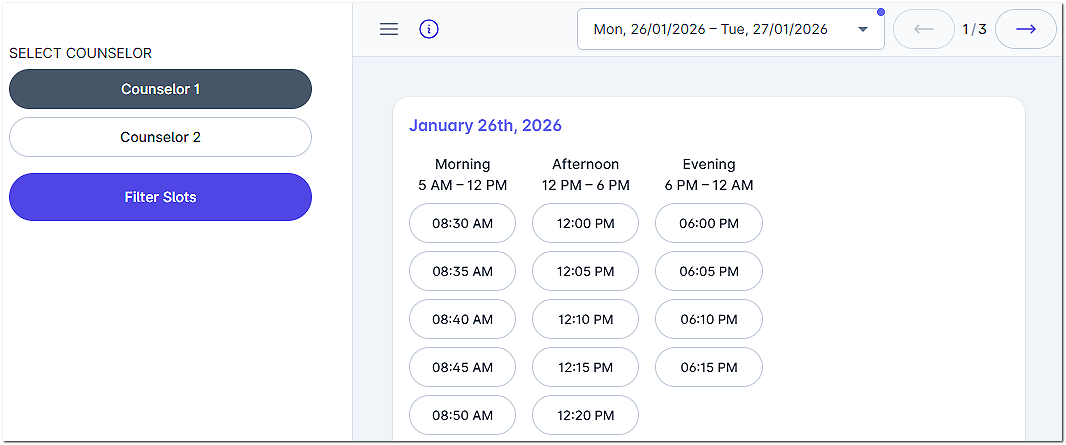
Date- displays the slots by date
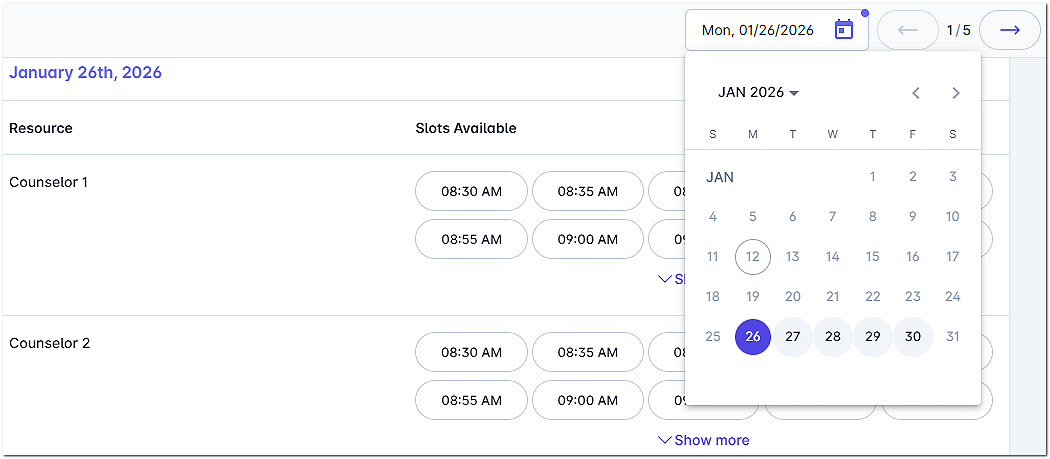
Paginator vs Calendar
In addition to the display options, you can also choose between the Calendar and Paginator.
The Calendar will display a day at a time, with the option to toggle between bates or to use a drop-down calendar.
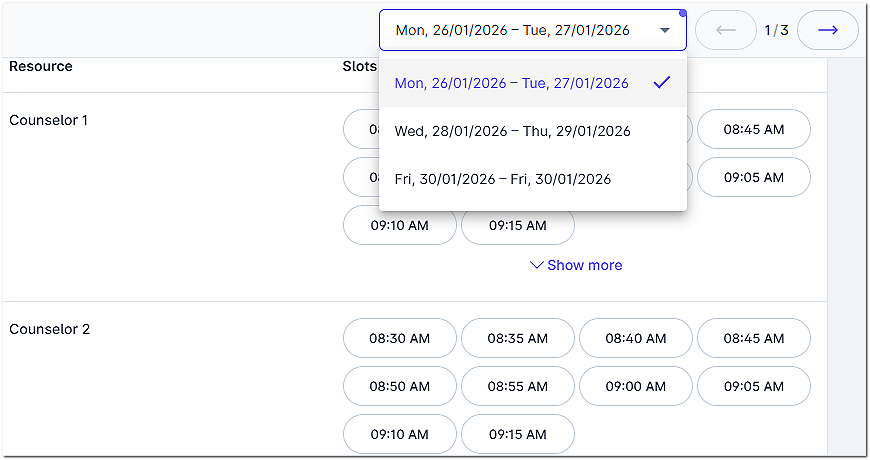
The Paginator can cover multiple days at a time, allows you to toggle between dates, and has a drop-down.
Additional Features
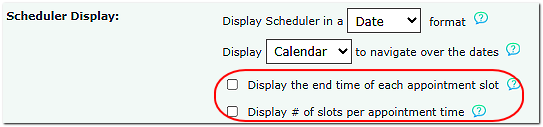
Display the end time of each appointment slot displays the end time of the appointment.
Display # of slots per appointment time shows the number of available slots for the appointment time.