
Events Preview Page
The Events Preview page allows you to create, delete, and edit certain event details.
The Events Preview Page Layout
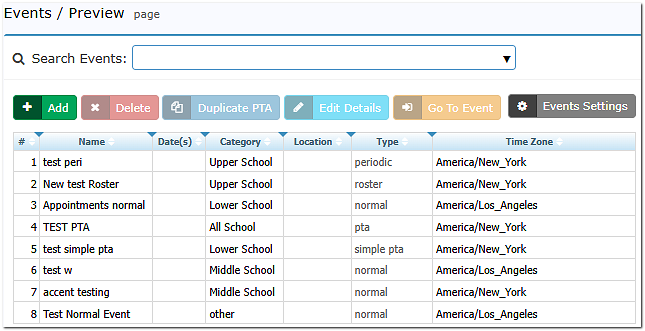
At the top of the page is the Search Events bar.
|
Buttons |
Description |
|
Add |
This button takes you to a form to create a new event. |
|
Delete |
This button allows you to delete your event |
|
Duplicate PTA |
This button is only activated when you request it. This option will create a copy of your old event and will contain the same class and enrollment data as the copied event. You only want to use this option if your class and enrollment data are the same - for example, if you have full-year classes. It will not duplicate time slot information. |
|
Edit Details |
This button will take you to a page where you can edit summary event details for your participants. |
|
Go to Event |
This button will take you to Event Management |
|
Event Settings |
This button will take you to an additional page where you can edit additional settings. |
Add New Event
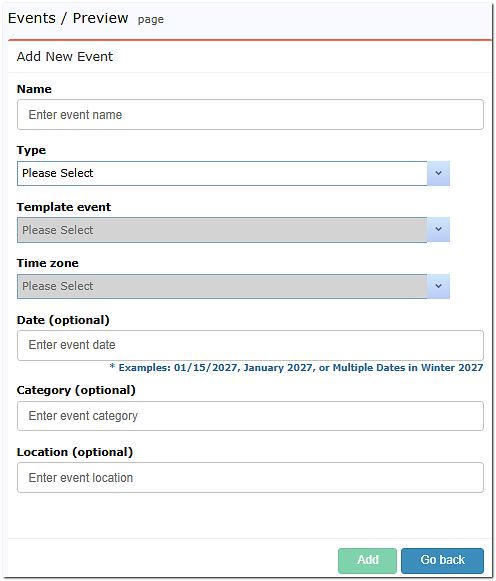
To create a New Event, do the following:
- Add your Event Name
- Select the Event Type “PTA,” “Simple PTA,” “Normal,” or “Roster”.
- Select the Event Template. PickAtime has templates available, but you can use an older event as a template for a newer event.
- Select your Time zone. If you use an older event as a template, the new event will take the time zone of the template event.
- The remaining fields are optional.
Edit Details
On this page, you can include written details, links, or images for your participants.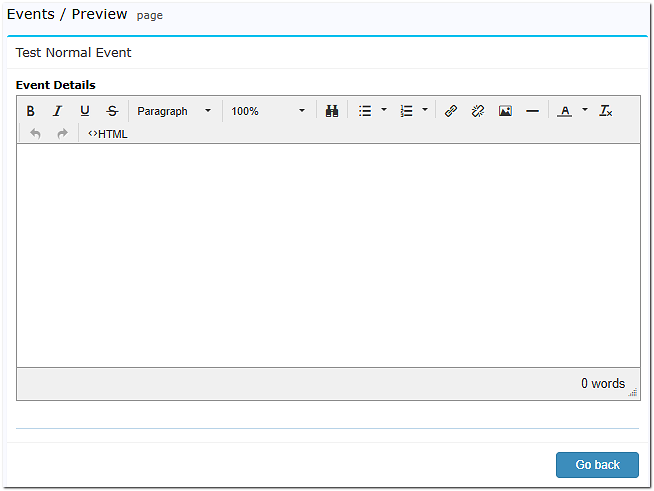
The Event Settings
The Event Settings page holds more advanced features for events on your account.
|
Events Settings |
|
|
Propagator Mode |
This allows you to propagate your changes to: only the current event; all events of the same type; or all events of the same category and type. |
|
Events Sorting |
|
|
Events Page Title |
Events Page’s Title, by default, it is set to Events, but you can customize it. For example,if you have events for multiple schools or clinics on the vendor account, you can change the title to Schools or Clinics accordingly. |
|
Default List |
Choose to display all events at once or list "featured" events first with a search bar for others. |
|
Sort events by the following order |
Select the display order for events. Drag fields to set your preferred hierarchy. |
|
Events Table Columns |
Add, delete, or reorder unique columns and customize their appearance on the Events/Preview page. |
|
Allowed timezones |
Allows you to toggle between national and international time zones. |
Manage Categories for Events |
|
|
Category Sort |
These features allow you to group events by category to improve navigation for participants, especially for accounts with high event volumes. |
|
Categories Page Title |
Set a custom name for the Categories landing page. |
|
Allow customer to select category first |
Forces an initial category selection before specific events are displayed. |
|
Category selector not displayed |
Allows you to create a URL based on the category you entered in the Category column for your event(s). |
|
Events Categories |
A management table to update, delete, or reorder categories across all events simultaneously. It affects appearance in the CUI (Client User Interface). |