Online conference scheduling replaces paper sign-up sheets and phone calls with a simple scheduling link. Schools publish each teacher's available times, parents select the appointments they need, and the system sends confirmations and reminders automatically.
A school that once spent a week collecting preferences and resolving scheduling conflicts by hand can open online sign-ups and have most of the schedule filled the same evening.
The mechanics are straightforward. What separates a smooth conference week from a difficult one is a handful of decisions made before sign-ups open: how long each conference should be, how parents will find the right teachers, how families with multiple children will schedule appointments, and what happens when a family cannot book online. This guide walks through those decisions in the order you need to make them.
The conferences themselves might take an afternoon, an evening, or both. Setting up an online conference scheduler can take as little as a few hours, although many schools prefer to prepare several weeks in advance.
Lead time is mostly a comfort. What the extra weeks buy you is a calmer process: room to consult teachers about their availability, to sort out roster problems before parents see them, and to test the parent experience without pressure. If you have that time, use it.
If you do not, a short runway is not automatically a lost cycle. A conference event can be built a great deal faster when it has to be, and pickAtime has set up events for schools that made contact close to their conference dates. It is not the ideal way to run a cycle and not a turnaround anyone should promise in advance, and it assumes the school already has its roster and event details in hand - a fast setup cannot also be a fast data-gathering exercise. If your dates are close, ask rather than assuming the window has closed.
A practical timeline, when you have the time to follow one, is:
One to two weeks of open booking is usually enough. Longer booking windows do not necessarily increase participation, and they give families more time to put off scheduling.
The appropriate appointment length depends on the age of the students and how many teachers each family needs to see. It is the decision that most affects how conference week feels, and the one schools most often get wrong by being optimistic.
| School type | Teachers per child | Slot length | Passing time | Typical evening |
|---|---|---|---|---|
| Elementary | 1 | 15-20 minutes | 2-5 minutes | One or two conferences per family |
| Middle school | 4-6 | 10 minutes | 2-5 minutes | Around an hour per family |
| High school | 6-8 | 5-10 minutes | 2-5 minutes | Only workable if slots stay short |
15 to 20 minutes per appointment is common. In elementary school a student typically has one primary teacher, or parents may need to meet with only one or two teachers, so there is room for a real conversation.
5 to 10 minutes per appointment is common. A parent may need to meet with six or seven teachers during one evening. Shorter appointments allow families to see more teachers while keeping the overall conference schedule manageable.
Allow two to five minutes between appointments when possible. Passing time gives teachers and parents an opportunity to catch up when a conversation runs long, and it prevents one delayed appointment from affecting the rest of the evening. Without it, a teacher who falls five minutes behind at 5pm is twenty-five minutes behind by 7pm, and every parent after that is waiting in a corridor.
An evening of back-to-back conferences can be exhausting, especially when appointments are short. Consider building a 10 to 15 minute break into the schedule partway through the session. A short break can prevent fatigue and help teachers stay on schedule for the remainder of the evening.
There are two primary ways to present teachers to parents. The best choice depends largely on the size and structure of your school.
The scheduling system uses student, teacher, class and enrollment information to determine which teachers each student has. A parent signing in sees only the teachers who teach their child. This provides the simplest experience for parents, particularly at middle and high schools.
For example, instead of asking a parent to search through a list of 80 teachers to find the six teachers their child has, the system might display only:
Parents are less likely to select the wrong teacher, and the school receives fewer calls asking for help. This approach requires roster data, including class and enrollment information, to be imported into the scheduling system. For schools with a large number of teachers, importing roster data can make a significant difference in the parent experience.
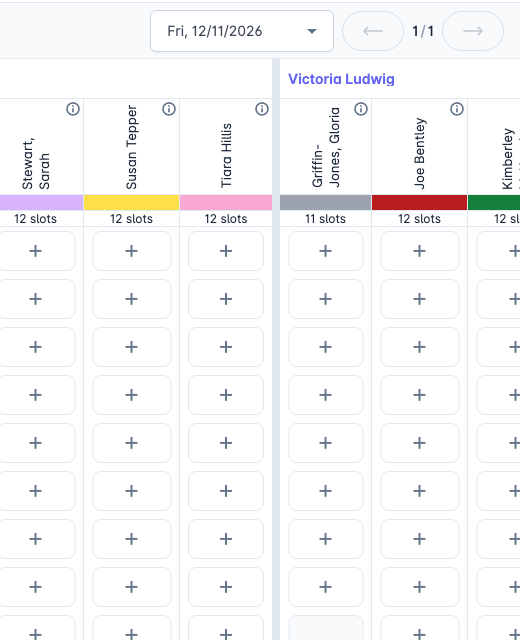
Teachers side by side in ten-minute slots, with remaining availability shown per teacher.
At a small school it may be simpler to display the complete teacher list and let parents select the teachers they want. This requires less setup, because no student enrollment information is needed to determine which teachers should be displayed. It works particularly well when the school has 20 or fewer teachers, because the list is short enough for parents to scan easily.
The practical question is whether you can get class and enrollment data from your student information system without creating a major project for your school.
If you can, using student enrollment information generally provides a better parent experience. If you cannot, showing the complete teacher list can work very well for a small school. It is not worth delaying a conference cycle simply to create a data integration.
Not every online sign-up tool is designed for parent-teacher conferences. General-purpose scheduling tools are often built for volunteer schedules, potlucks, office hours and other activities where people simply choose an available time. For a small school, that may be all you need.
The difference becomes important when a school needs to connect students, parents, classes and teachers. A general sign-up tool may know that a 4:00 PM appointment is available with Mr. Ellis. It does not necessarily know that Maya is in Mr. Ellis's third-period class. Without that connection:
At a small school these issues may not matter much. At a school with 50, 80 or 100 teachers, they can become a significant administrative burden.
When evaluating a conference scheduling system, ask whether it can import student, teacher, class and enrollment data from your student information system. If it cannot, the school will need to enter and maintain that information manually for as long as it uses the system. This is the least discussed part of choosing a conference scheduler and usually the most consequential. Importing a student roster covers what the data actually looks like and how much work it is.
Families with two or three children at the same school have a more complicated scheduling problem than families with one child. They may need appointments with teachers in different grades, departments or buildings, and they want those appointments close together without overlapping.
Whenever possible, let parents see their children together rather than requiring a separate sign-in or scheduling process for each child.
Do not assume parents will know this. Include clear instructions in the email announcing conference scheduling:
“If you have more than one child at the school, you can schedule appointments for all of your children during the same visit.”
If your school has many families with multiple children, consider giving those families an early opportunity to book. This gives them a better chance of arranging appointments close together and avoiding conflicts, and it reduces the number of manual rearrangements the office has to make later.
Parent sign-in is one of the areas most likely to generate phone calls on the first evening of registration. Parents cannot book until they can identify themselves, and whatever information you require needs to be something they can easily find.
Schools using pickAtime may verify a parent by matching the parent with their child using information such as student ID and date of birth. Pine Bush Central School District, for instance, tells families plainly on its parent page: “You will need the child(ren)’s student ID and birth date when signing into the account” (Pine Bush CSD). Depending on the school's configuration, other identification methods may also be available.
If parents need a student ID, tell them before booking opens. For example:
“You will need your child's student ID and date of birth to schedule your conferences.”
If parents do not know their child's student ID, provide another way for them to identify their child where possible, such as entering the student's name.
If your school already uses a parent portal or single sign-on system, consider using that existing login rather than creating another set of credentials for parents. Where a school runs Blackbaud, Veracross, Clever or ClassLink, parents can reach the scheduler through the portal already sign into, and there is no separate account at all.
A parent who learns three days in advance that they need their child's student ID can find it without stress. A parent who discovers it at 7:00 PM on the first night of booking is much more likely to call the school.
Before sending the scheduling link to families, test it as a parent. Use a phone or another device where you do not have administrative access, and go through the complete process:
If anything is confusing to you, it will probably be confusing to parents.
Online scheduling does not eliminate the need to help some families. Every school has families who may:
The best approach is usually for the school office to book appointments on the parent's behalf using the same schedule available to everyone else. That way there is one schedule and one source of truth, rather than a separate spreadsheet of exceptions.
Administrators should be able to create, change and cancel appointments quickly and directly from the administrative system. pickAtime does this from the administrative tool. Decide in advance who is doing it: it is a predictable half-day of work, not an emergency.
Most missed conferences are forgotten, not skipped. Send a confirmation immediately after an appointment is booked. The confirmation should clearly include:
A useful confirmation might say:
“Your conference with Mr. Ellis is confirmed for Tuesday, November 12 at 4:15 PM in Room 12.”
That is much more useful than “Your appointment is confirmed.”
A reminder sent the day before the conference is a good starting point. If your system supports multiple reminders, a second reminder on the morning of the conference can help reduce no-shows.
Virtual conferences remove the travel time that can prevent working parents from attending. They also make short appointments easier, because parents do not have to walk between classrooms.
However, virtual conferences have their own scheduling challenges. There is no hallway for someone to wait in, so an appointment that runs over can interfere directly with the next meeting. Keep passing time between virtual appointments.
Most importantly, make the meeting link easy to find. Include it in the appointment confirmation and in the appointment reminder. A meeting link that exists only inside the scheduling system is more likely to generate questions and support calls.
Many schools offer both in-person and virtual appointments. This allows families to choose the option that works best for them while giving teachers a consistent conference schedule. It raises participation among parents who cannot travel on a weeknight without penalizing those who prefer to come in. Running virtual parent-teacher conferences covers platform choice, meeting links and what to do when the technology fails.
Before you close the event, export the schedule and attendance information. Two things are particularly useful to review.
Which appointment times filled first? If 7:00 PM appointments fill immediately while 3:30 PM appointments remain available, your next conference schedule may benefit from offering more evening appointments.
Which families did not book? The families who did not schedule are often the most important group to follow up with. A list of families who never booked gives the school a targeted list for phone calls or other outreach, and it is far more useful in the week after conferences than in the term after.
pickAtime has provided online scheduling to schools since 2000, and more than 16 million appointments have been booked through the platform.
pickAtime is designed specifically for scheduling appointments such as parent-teacher conferences, including schedules where parents need to meet with multiple teachers, or where student, class and enrollment information can be used to simplify the parent experience.
If you are evaluating online conference scheduling, the parent-teacher conference scheduling overview covers both products, and current pricing is published rather than quoted.
When you are ready to build a schedule rather than plan one, the step-by-step documentation lives in the PTA setup guide, which covers setting up an event, importing data, creating time slots, configuring settings and testing the scheduler. The management guide covers running it, and the PTA FAQs answer the questions schools ask most often.