Importing your student roster allows parents to see only the teachers their child actually has when they schedule conferences. Without roster information, every parent may need to choose from the school's entire teacher list - which is manageable at a small school but becomes difficult as the number of teachers grows.
Roster data can make the parent scheduling experience significantly easier, particularly at middle and high schools where students may have many different teachers.
The import itself is usually straightforward. What can make it confusing is that a roster is not a single list of students. It consists of several related sets of information - students, teachers, classes and enrollments - and those records need to connect correctly.
This guide explains what information you need, how the files connect, why imports can fail, how to review your data, and when an automated rostering connection may make more sense than uploading files.
Importing roster data is not always necessary. A small school with a relatively short teacher list may find it easier to display all teachers and let parents select the ones they need. If a school has 15 or 20 teachers, parents can usually scan the list without much difficulty.
At a larger school, asking a parent to search through 80 teachers to find the six or seven their child has creates unnecessary work and increases the chance of mistakes. Consider importing roster data when:
The most important question is not simply “How many teachers do we have?” It is “Do students have different sets of teachers from one another?” If most students have their own combination of teachers, using enrollment information to determine which teachers parents see makes a substantial difference.
The roster data does not become unnecessary; it becomes manual. Someone keys in every teacher, and keys in the changes when staffing shifts. Because nothing links a student to their teachers, every parent chooses from the full staff list and hopes they picked correctly, and the wrong bookings become phone calls to the office during the week it can least absorb them. At a small school that is a fair trade. At eighty teachers it is the whole job.
For a small school, manually setting up a teacher list may be faster than obtaining and preparing SIS data. An import may also not be practical if getting the required information from your student information system involves a lengthy district IT process.
If this is your school's first conference cycle and obtaining the roster would delay the event, it may make sense to run the first conference using a simpler setup and plan to import roster data for future events. A conference that happens beats a conference that is correctly rostered and cancelled.
The goal is not to import data simply because you can. The goal is to create the simplest and most reliable scheduling experience for your school.
A conference roster is more than a list of students. It is a small relational model, and understanding its shape before you export anything will save you most of the trouble.
| Data | One row per | Identifies | Connects to |
|---|---|---|---|
| Students | Student | Student ID | — |
| Teachers | Teacher | Teacher ID | — |
| Classes | Class or section | Class ID | Teacher ID |
| Enrollments | Student enrolled in a class | Student + Class | Student ID, Class ID |
The four pieces work together:
The chain runs Student → Class → Teacher. If Maya is enrolled in Algebra 8, and Ms. Jones teaches Algebra 8, the scheduling system can determine that Ms. Jones is one of Maya's teachers. This relationship is what makes a roster-driven conference schedule different from a simple list of available time slots.
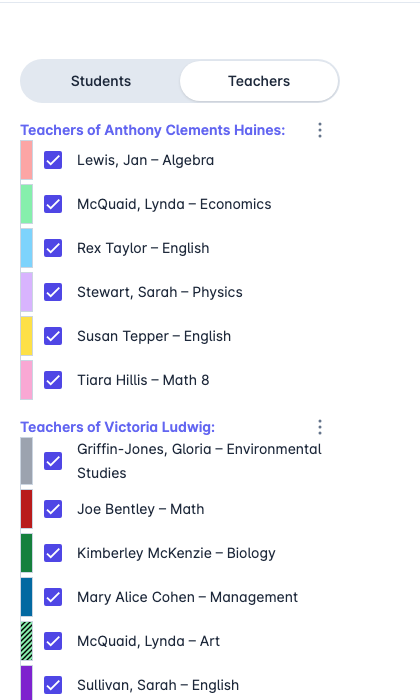
What the roster buys: each child's own teachers, with subjects, both siblings under one login.
The most common roster problems occur when records in one file cannot be matched to records in another. An enrollment record might say that student 12345 is enrolled in class 67890 - the student and class files must contain those same IDs. The import will not tell you the child's name; it will tell you an ID it could not find.
Use the permanent IDs provided by your student information system wherever possible, and avoid row numbers, email addresses, names, or any other information that can change. A student's name can change. A teacher's email address can change. A permanent student or teacher ID should survive both.
A student file from Monday and an enrollment file from Thursday will disagree with each other, and the disagreement is silent until you import. This is the most common cause of enrollments that will not load.
Pay particular attention to leading zeros, spaces before or after an ID, IDs converted to numbers, IDs displayed in scientific notation, and different formatting between files. An ID such as 001234 can accidentally become 1234 if a spreadsheet program treats it as a number.
If you need to open an exported CSV in a spreadsheet application, treat ID columns as text rather than numbers. This is especially important with Excel and other programs that automatically reformat data.
The names of the reports or exports vary from one student information system to another. You may see terms such as reports, exports, data extracts, queries or rosters. The information you need falls into the four categories above: students, teachers, classes or sections, and enrollments. If your school has an SIS or data administrator, ask them for these four sets of information specifically for conference scheduling.
Wherever possible, use enrollment information that reflects the classes students are currently taking. If conferences are being held in February, an export containing classes that ended in December may cause parents to see teachers they no longer have. Before importing, ask: does this data represent the students' current teachers and classes? If not, update the export first.
If your school or district has an SIS administrator, data administrator or technology department, ask them about the appropriate reports or exports. The process is usually much easier when someone familiar with your school's SIS prepares the files, and it is generally a short conversation rather than a project.
There are two common ways to provide roster information to a conference scheduling system.
The school exports the required information from its SIS and uploads the files to the scheduling system. This can work well when:
An automated rostering connection transfers student, teacher, class and enrollment information without requiring an administrator to export and upload files manually each time. This is particularly useful for schools that run several conference events during the year, or that frequently need current roster information.
pickAtime supports file-based roster imports as well as automated rostering, including connections through services such as Clever and ClassLink and integrations with systems such as Blackbaud and Veracross, depending on the school's configuration.
The tradeoff is usually straightforward. File upload is simpler to start, but requires periodic exports and imports. Automated rostering takes more setup initially, usually involving your district's rostering administrator, but requires less manual maintenance afterward. One conference cycle a year with a stable roster: upload files. Multiple events, mid-year intake, or a district running several schools: automate it.
Do not assume that a successful import means the roster is correct. A technically successful import can still contain incorrect or incomplete information, because the import reports success as soon as the IDs resolve - not when the data is right.
Import one grade or one homeroom before the whole school - twenty students, their teachers, their classes and enrollments. It takes ten minutes and surfaces every structural problem your full file has, while the error list is still short enough to read.
Review several students before opening conference scheduling to parents, and make sure:
The most useful test is to sign in as a parent and look at the schedule from the parent's perspective. Choose several students with different schedules - a student with a standard schedule, a student with several electives, and a family with multiple children - and make sure the teachers displayed are the teachers you expect.
This is the check that catches the errors an import cannot: enrollments that loaded successfully but point at the wrong class, or a teacher assigned to a section they do not teach. Do it before you send the sign-up link, not after. Correcting a roster while parents are booking means cancelling appointments that have already been made. A clean import is not necessarily a correct import; the parent view is the final test.
Most import errors fall into a few categories, and recognising which one you have tells you where to look.
A required column is missing, empty or named incorrectly. Review the file's header row and compare it with the required file format - exports often rename columns between versions.
One file refers to an ID that does not exist in another. An enrollment file may contain a student ID that does not appear in the student file. The file being imported is usually fine; the file it points at is missing a row or formatted differently. Make sure the IDs match exactly across the related files.
The same ID appears twice, usually a student enrolled in two sections of the same class, or a re-export that was appended rather than replacing the previous file.
Leading zeros that were removed, extra spaces, incorrect date formats, IDs converted to numbers, or unexpected characters. A malformed row is almost always a comma inside an unquoted field - names with commas and addresses are the usual culprits. Compare the affected record with the original SIS export.
If the same problem will occur in your next export, fix the underlying report or export rather than repeatedly editing the CSV by hand. Manual corrections can solve one import, but they do not solve the underlying problem, and you will do the same work again every term.
Student rosters change. Students enroll or withdraw, classes are changed, sections are rebalanced in the first weeks of term, and teachers may take leave or change assignments.
For a single annual conference, import roster information reasonably close to the conference event rather than relying on a roster created months earlier - a roster loaded in September and used in November will be wrong by the time it matters. If you are using an automated rostering connection, current data can be maintained automatically according to the configuration of that connection.
Even with an automated roster, administrators may occasionally need to make a manual correction. Make sure someone on your administrative team knows how to add or update a student, update a teacher, correct a class assignment and resolve an enrollment issue - and that they know it before conference week, rather than learning the process while parents are booking appointments.
pickAtime has imported school rosters since 2000, and uses student, teacher, class and enrollment information to create a more personalized parent scheduling experience. Instead of presenting every parent with the school's entire teacher list, roster-driven scheduling shows parents the teachers associated with their child or children.
pickAtime supports both file-based roster imports and automated rostering, so schools can choose the approach that fits their size, technology environment and conference schedule. The parent-teacher conference scheduling overview explains how roster-driven scheduling changes what parents see, and the Clever integration, ClassLink integration and Blackbaud integration pages cover automated rostering in more detail.
When you are ready to import your data, the import guide provides the required file formats, field specifications and information about resolving import errors.